 LLMFreeAPI
Build Intelligent Agents via n8n Workflows
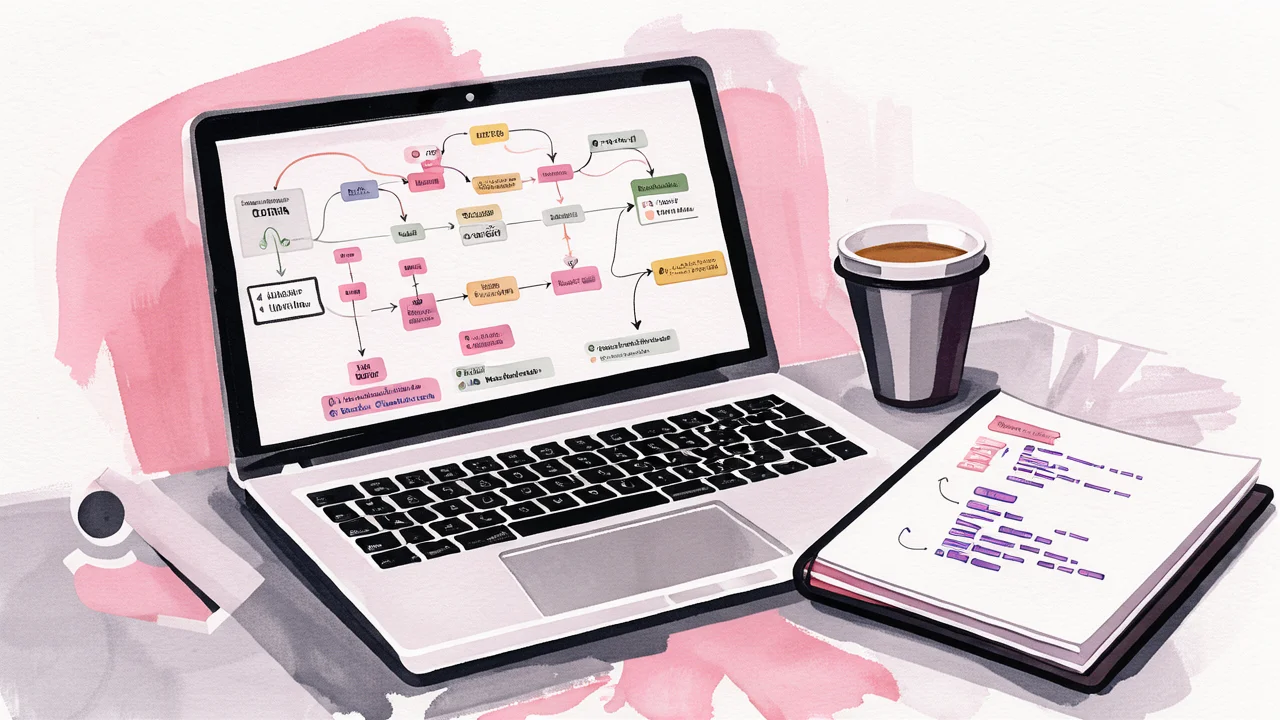
Building AI agents used to mean paying for expensive enterprise APIs or managing complex local infrastructure. Today, you can combine the open-source workflow engine n8n with LLMFreeAPI to create robust, autonomous agents that run on your own hardware or a cheap VPS. This approach eliminates monthly subscription fees and token limits while giving you full visibility into every step of the automation.
The core advantage of this stack is simplicity and cost control. n8n provides native AI nodes that handle message formatting, streaming, and tool calling, while LLMFreeAPI offers a free, keyless OpenAI-compatible endpoint. You get an uncensored model with few refusals, allowing your agents to execute tasks without being blocked by overly conservative safety filters common in commercial models.
This guide shows you how to set up a workflow that processes data, makes decisions, and acts on them. We will cover configuring the API connection, designing the agent logic, and handling errors. You will learn to build agents that can summarize emails, scrape data, or manage databases without relying on third-party billing systems.
Frequently asked questions
What is n8n?
n8n is an open-source workflow automation tool that lets you connect different apps and services. It features a visual editor where you can drag and drop nodes to create complex workflows. Unlike proprietary tools, n8n can be self-hosted, giving you full control over your data and execution environment without per-task fees.
What is LLMFreeAPI?
LLMFreeAPI is a free, keyless API that provides access to an uncensored AI model. It uses the standard OpenAI chat completions format, making it easy to integrate with existing tools. You do not need an account or API key to start using it, and it supports streaming responses for real-time interactions.
How does LLMFreeAPI differ from commercial APIs?
Commercial APIs often have strict content filters, rate limits, and usage-based pricing. LLMFreeAPI removes the need for keys and offers fewer refusals on content. However, it lacks a service level agreement (SLA) and has daily request limits. It is ideal for personal projects and internal tools where absolute uptime is not critical.
Which is better for privacy: local models or this API?
Local models offer the highest privacy since your data never leaves your machine. However, they require significant hardware resources. LLMFreeAPI is hosted remotely, so your prompts are logged on their servers. For most automation tasks, the convenience of a free API outweighs the privacy trade-off, especially if you use it for non-sensitive data processing.
How do I handle rate limits in n8n?
LLMFreeAPI allows one request per second with bursts of three. In n8n, you can add a 'Wait' node or use a rate limiter node to prevent hitting the 429 error. If you encounter a 503 error, implement a retry logic with exponential backoff to handle temporary server busy states gracefully.
Can I use streaming in n8n with this API?
Yes, n8n supports streaming responses from OpenAI-compatible APIs. You can configure the AI node to stream output, which provides a better user experience for chat interfaces. This allows the agent to display thoughts or partial responses in real-time, rather than waiting for the full response to complete.
What are the limitations of the free model?
The model has a context window of 32,000 tokens and can generate up to 16,000 tokens per response. It is text-only, meaning it cannot process images or audio directly. Also, since it is a free service, there is no support contract, and the server may be busy during peak hours, leading to occasional delays.
How do I test if the API is working?
You can use the /health endpoint to check the server status. In n8n, add a 'HTTP Request' node pointing to https://api.llmfreeapi.com/v1/health. If it returns a 200 status, the service is up. You can also send a simple test message to the chat completions endpoint to verify connectivity and response format.
Step by step
- Install n8n — Set up n8n using Docker on your local machine or a VPS. This provides a stable environment for your workflows.
- Configure API — Add the OpenAI node in n8n and point it to https://api.llmfreeapi.com/v1 with model 'free-ai'. No key is needed.
- Build Workflow — Create a workflow that reads data, sends it to the AI agent, and processes the output. Use tools for complex tasks.
- Handle Errors — Add retry logic to handle 429 and 503 errors. Monitor execution logs to ensure reliability.
Setting Up the Environment
To begin building your AI agent, you need a stable environment for n8n. You can install n8n locally using Docker, which is the most reliable method for development. This ensures that your workflow runs consistently regardless of your host operating system. You will need Docker and Docker Compose installed on your machine to proceed with the setup.
Once Docker is ready, create a directory for your n8n instance and initialize it with the official Docker Compose file. This will spin up the n8n service and a PostgreSQL database for persistence. You can access the n8n interface via localhost:5678. This local setup gives you complete control over your workflows and data, avoiding the limitations of cloud-hosted free tiers.
Installing n8n via Docker
Docker simplifies the installation process by packaging all dependencies. Pull the official n8n image and configure the environment variables for database connection. This ensures your workflows are saved and can be resumed after a restart. It is the standard way to run n8n in production or development.
Configuring the Database
n8n requires a database to store workflow definitions and execution history. PostgreSQL is the recommended backend. Ensure your database container is running and accessible from the n8n container. This step is crucial for maintaining state across workflow executions and preventing data loss during updates.
Integrating LLMFreeAPI
LLMFreeAPI is designed to be a drop-in replacement for OpenAI’s API. Since it follows the OpenAI standard, you can use the existing n8n OpenAI node without writing custom code. The base URL is https://api.llmfreeapi.com/v1, and the model name is 'free-ai'. You do not need to generate or manage an API key, which simplifies the configuration significantly.
In the n8n OpenAI node settings, enter the base URL and set the model to 'free-ai'. Since there is no key, you can leave the API Key field empty or use a dummy value. This integration allows you to leverage the uncensored model for your agent’s decision-making processes. The model is fine-tuned to refuse less, making it suitable for creative and autonomous tasks.
Configuring the API Node
Open the n8n workflow editor and add an OpenAI node. Enter the base URL https://api.llmfreeapi.com/v1. Set the model to 'free-ai'. Leave the API key field blank. This configuration connects your workflow to the free API, allowing you to send prompts and receive responses without any authentication overhead.
Testing the Connection
Before building complex logic, test the connection with a simple prompt. Send a request to the node and verify that you receive a valid response. Check the execution details in n8n to ensure the latency is acceptable. This step confirms that your network can reach the API and that the model is responding correctly.

Designing the Agent Logic
An AI agent in n8n is essentially a workflow that uses the LLM to make decisions. You can use the AI Agent node, which allows the model to call tools and iterate on its actions. This is powerful for tasks that require multiple steps, such as researching a topic, summarizing the findings, and then formatting the output.
The agent loop continues until a condition is met, such as reaching a maximum number of iterations. You can define tools that the agent can use, such as searching the web or querying a database. This turns a simple chatbot into a proactive assistant that can perform actions on your behalf. The uncensored nature of the model means it is less likely to refuse complex or nuanced tasks.
Using the AI Agent Node
The AI Agent node in n8n enables multi-step reasoning. It allows the model to plan, execute tools, and reflect on the results. This is ideal for complex workflows where a single prompt is not enough. You can set the maximum iterations to control the depth of the agent's reasoning and prevent infinite loops.
Defining Tools for the Agent
Tools allow the agent to interact with external systems. You can define custom tools in n8n that call HTTP endpoints or run scripts. For example, you can create a tool that fetches data from a JSON API or updates a spreadsheet. The agent will decide when to use these tools based on the user's request.
Building a Data Processing Agent
One of the most common use cases for AI agents is data processing. You can build an agent that reads data from a source, analyzes it, and writes the results to a destination. For example, you might want to summarize a list of emails and route them to different teams based on their content.
This workflow involves reading data, sending it to the LLM for analysis, and then using the output to trigger further actions. The LLMFreeAPI model is well-suited for this because it can handle long contexts and provide detailed summaries. You can chain multiple nodes to create a robust data pipeline that adapts to changing inputs.
Reading Data from Sources
Start by adding a node that reads data from your source, such as Gmail, a CSV file, or a database. This data will be passed to the AI agent for processing. Ensure that the data format is compatible with the LLM’s input requirements, typically JSON or plain text. You may need to format the data using a code node before sending it.
Processing with the LLM
Send the data to the LLMFreeAPI via the AI Agent node. Instruct the model to analyze the data and extract key insights. The model’s ability to handle long contexts allows it to process large datasets in a single pass. You can then use the output to make decisions, such as routing emails or updating records.
Handling Errors and Retries
Since LLMFreeAPI is a free service, it may occasionally return errors like 429 (rate limit) or 503 (server busy). It is important to handle these errors gracefully in your n8n workflow. You can use the 'Error Trigger' node to catch failures and retry the operation.
Implementing retry logic ensures that your agent does not fail due to temporary network issues. You can configure the retry node to wait for a few seconds before attempting the request again. This is especially useful for streaming responses, where interruptions can occur. Proper error handling makes your agent more reliable in production.
Implementing Retry Logic
Add a retry node after the AI node in your workflow. Configure it to retry on specific HTTP status codes, such as 429 and 503. Set the number of retries and the delay between attempts. This ensures that transient errors do not break your workflow. It is a best practice for any integration with external APIs.
Monitoring Workflow Execution
n8n provides detailed logs for each workflow execution. You can monitor these logs to identify issues and optimize performance. Use the 'Execution' tab to view the input and output of each node. This helps you debug problems and understand how the LLM is processing your data. It is essential for maintaining a healthy automation system.
Optimizing for Performance
To get the best performance from your agent, you need to optimize the prompts and the workflow structure. Shorter, more specific prompts tend to be faster and more accurate. You can use the /prompt.txt endpoint to get a standardized prompt format for coding assistants, which can be adapted for other tasks.
Additionally, consider the token limits. LLMFreeAPI has a context window of 32,000 tokens. If your data exceeds this, you may need to chunk it into smaller parts. You can use n8n’s 'Split In Batches' node to process large datasets in chunks. This ensures that you stay within the limits while still processing all the data.
Prompt Engineering for Efficiency
Write clear and concise prompts to reduce token usage and improve response quality. Use the /prompt.txt endpoint as a reference for standardizing your prompts. This ensures consistency across different parts of your workflow. Efficient prompts also reduce latency, making your agent feel more responsive to users.
Managing Context Limits
Be mindful of the 32,000 token context limit. If you are processing large amounts of data, split it into smaller batches. Use n8n’s batch processing nodes to handle this automatically. This prevents errors due to exceeding the context window and ensures that all data is processed correctly.
Advanced Agent Features
You can extend your agent’s capabilities by integrating it with other services. For example, you can connect it to Slack or Telegram to receive notifications. You can also use the /ask endpoint for simple text queries directly from the command line or a script.
These integrations make your agent more versatile. You can build a system that not only processes data but also communicates the results to stakeholders. The open CORS policy of LLMFreeAPI allows you to integrate it with web applications easily. This flexibility is one of the key advantages of using a keyless API.
Integrating with Communication Tools
Connect your agent to Slack or Telegram to send updates. Use n8n’s built-in nodes for these services to format and send messages. This allows your agent to act as a proactive assistant, notifying you of important events or completing tasks on your behalf. It enhances the utility of your automation.
Using the /ask Endpoint
The /ask endpoint provides a simple way to query the model for plain text responses. You can use this in scripts or command-line tools for quick checks. It supports JSON format for structured data. This endpoint is useful for lightweight tasks that do not require the full chat completion interface.
Security and Privacy Considerations
While LLMFreeAPI is free and keyless, it is important to be aware of the privacy implications. Your prompts are logged on the server, including the IP address and user agent. If you are processing sensitive data, consider using a local model or a private API.
For most use cases, the convenience of a free API outweighs the privacy trade-off. However, you should avoid sending highly sensitive information, such as passwords or personal identifiers, unless you trust the provider. You can also use the /health endpoint to monitor the service’s status and ensure it is reliable for your needs.
Understanding Data Logging
LLMFreeAPI logs technical details for each request, including time, IP, and endpoint. This data is used for monitoring and debugging. If privacy is a concern, review the logging policy and consider anonymizing your data before sending it to the API. This is a common practice when using free AI services.
Choosing Between API and Local
Decide between using the API or a local model based on your needs. The API is easier to set up and requires no hardware. Local models offer better privacy but require more resources. For most automation tasks, the API is sufficient, but for sensitive data, local models may be preferable.

Test the keyless API right now on the home page to see how unrestricted AI handles your prompts without any setup.
Home →