 LLMFreeAPI
Matching Model Size to Your System’s Limits
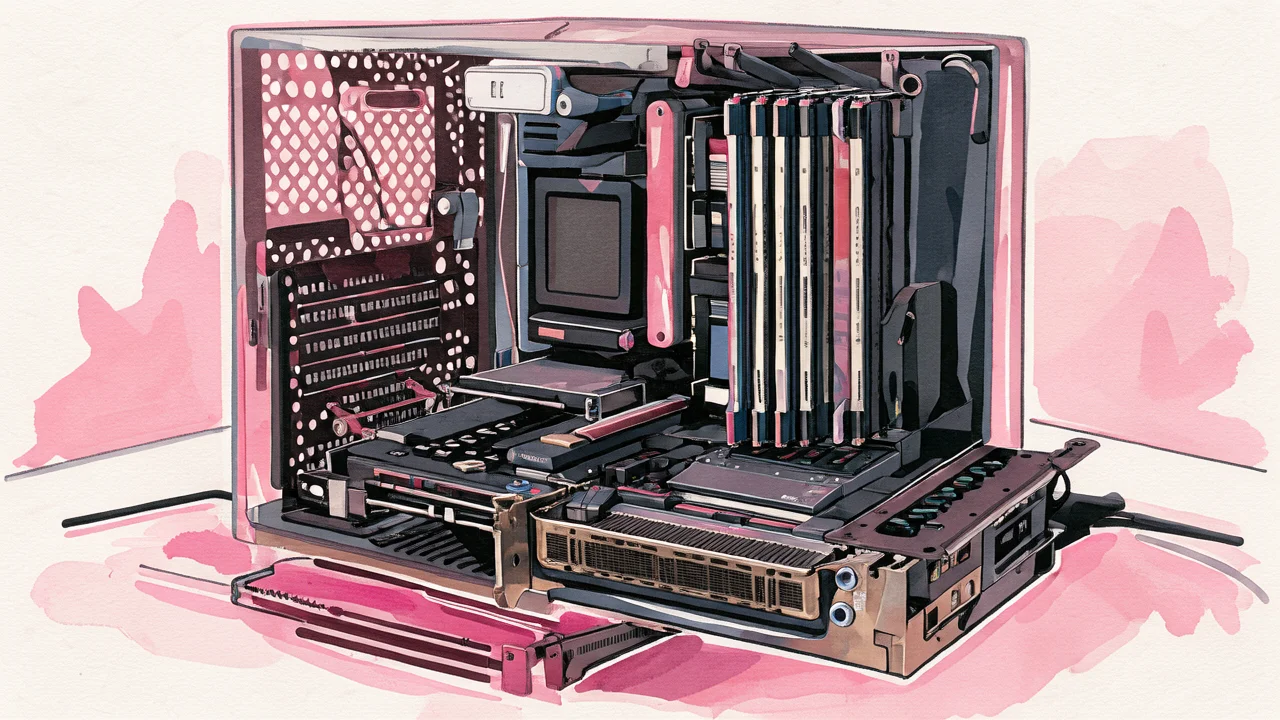
Selecting the right language model for local deployment is less about finding the 'best' model and more about finding the one that fits your hardware without choking your system. Whether you are running a high-end workstation with an NVIDIA GeForce RTX 5090 or a MacBook Pro M5 Max with 64GB of unified memory, the constraint is always physical memory. The goal is to balance model size, quantization level, and task complexity to ensure smooth inference without constant swapping to disk.
Hardware capabilities dictate the maximum context length and response speed you can achieve. A CPU-only setup with 96GB of RAM might handle a large model slowly, while a GPU with limited VRAM might force you to use aggressive quantization, reducing accuracy. Understanding the difference between system RAM and VRAM is critical, as they serve different purposes in the inference pipeline. This guide breaks down how to match your specific hardware profile to the right model architecture.
We focus on practical selection criteria rather than abstract benchmarks. You need to know whether your hardware can handle a 35B parameter model at full precision or if you should drop to a 7B or 13B model with higher quantization. We will explore how to test your limits, optimize for specific tasks like coding or creative writing, and leverage free APIs when local hardware struggles. The key is honest assessment of your resources and realistic expectations for performance.
Frequently asked questions
What is VRAM and why does it matter for LLMs?
VRAM (Video RAM) is the dedicated memory on your GPU. It stores the model weights and activation states during inference. If your model size exceeds your VRAM, the system must offload parts to system RAM, causing a significant speed drop. For example, a 7B model at 4-bit quantization needs about 4-5GB of VRAM. If you have an RTX 3090 with 24GB, you can run larger models like Llama-3-70B at low quantization. Always check your VRAM before downloading a model to avoid out-of-memory errors.
How does system RAM differ from VRAM in model selection?
System RAM is used when the GPU runs out of space, acting as a slower backup. It also stores the context window for long conversations. If you have 64GB of RAM like the M5 Max, you can run larger models by using the CPU and unified memory, but inference will be slower than on a dedicated GPU. RAM is crucial for context length; if you need to process long documents, ensure you have enough RAM to hold the entire context, not just the model weights. High RAM allows for larger context windows even with smaller models.
Which is better: a large model with low quantization or a small model with high quantization?
A large model with low quantization (e.g., 16-bit) generally offers better reasoning and coding accuracy but requires massive VRAM. A small model with high quantization (e.g., 4-bit) is faster and fits on consumer hardware but may hallucinate more or struggle with complex logic. For coding tasks, a 7B-13B model at 4-bit often suffices. For creative writing or nuanced reasoning, a larger model like 30B+ at 8-bit is preferable if your hardware allows. Test both on your specific tasks to see which meets your quality threshold.
How do I choose a model for coding tasks on limited hardware?
For coding, prioritize models trained on code datasets. A 7B or 13B model quantized to 4-bit or 8-bit is often sufficient for generating and debugging code. Look for models like CodeLlama or Mistral variants. If you have limited VRAM, use a smaller model with a smaller context window. You can also use free APIs like LLMFreeAPI to offload heavy coding tasks to a server, freeing up your local hardware for other tasks. This hybrid approach lets you use powerful models without needing expensive hardware.
What is the impact of context window size on model choice?
The context window determines how much text the model can 'remember' in a single conversation. Larger contexts require more VRAM and RAM. If you need to analyze long documents, you need a model that supports a large context window (e.g., 32k or 128k tokens). Smaller context windows mean the model forgets earlier parts of the conversation. If your hardware cannot handle large contexts, you may need to chunk your input or use a API that handles long contexts for you, such as the free API at /v1/chat/completions.
How does CPU-only inference compare to GPU inference?
CPU-only inference is significantly slower than GPU inference, often 10-50x slower depending on the model size and quantization. It is suitable for occasional use or when you have ample RAM but no GPU. However, for real-time chat or streaming, GPU is essential. If you must use CPU, look for models optimized for CPU inference, such as those using GGUF format with llama.cpp. This allows you to run models on your M5 Max or Ryzen 9 9950X3D, but expect longer wait times for responses.
What is quantization and how does it affect model performance?
Quantization reduces the precision of the model's weights, from 16-bit floating point to 8-bit, 4-bit, or even lower. This reduces memory usage and speeds up inference but can reduce accuracy. 4-bit quantization is common for consumer GPUs, offering a good balance. 8-bit is better for quality if you have the VRAM. Always check the quantization level when downloading a model. Lower quantization means smaller file size and faster loading, but potentially more errors in complex tasks like statistical analysis or detailed coding.
Which model architecture is best for creative writing?
For creative writing, models with strong narrative capabilities and less rigid refusal policies are preferred. Look for models labeled as 'uncensored' or 'unrestricted' if you want more freedom in tone and content. Models like Llama-3 or Mistral fine-tuned for storytelling work well. A 13B or 30B model at 8-bit quantization is a good starting point. You can also use free APIs to access larger models without local hardware constraints. Test different models with the same prompt to see which generates the most engaging and coherent narrative.
Step by step
- Assess Hardware — Identify your GPU VRAM, system RAM, and CPU capabilities to determine your maximum model size and quantization level.
- Select Model — Choose a model architecture and quantization level that fits your hardware and task requirements, such as coding or creative writing.
- Test Performance — Run benchmark tests and measure resource usage to evaluate the model's performance on your specific hardware and tasks.
- Optimize Setup — Adjust context window size, quantization, and other parameters to optimize performance and resource usage.
- Use APIs if Needed — If local hardware is insufficient, use a free API like LLMFreeAPI to access larger models and handle heavy computation.
Assessing Your Hardware Constraints
Before selecting a model, you must accurately assess your hardware's capabilities. Start by identifying your GPU model and its VRAM capacity. An NVIDIA RTX 3090 with 24GB VRAM can handle a 70B model at 4-bit quantization, while an RTX 3060 with 12GB might struggle with even a 13B model at higher quantization. For CPU-only systems, check your RAM size; 32GB is a minimum for comfortable local inference, while 64GB or more allows for larger models. Also, consider your storage speed; NVMe SSDs significantly reduce model loading times compared to HDDs or slower SSDs.
Next, evaluate your CPU architecture. Modern CPUs like the AMD Ryzen 9 9950X3D or Apple M5 Max have large caches and efficient architectures that can accelerate inference, especially when using optimized libraries like llama.cpp. However, CPU inference is still slower than GPU. If you have a hybrid setup, understand how your system allocates memory between CPU and GPU. Some frameworks allow you to offload layers to the GPU and the rest to the CPU, optimizing performance based on your available resources. This flexibility is crucial for running larger models on modest hardware.
Checking VRAM and RAM Usage
Use tools like nvidia-smi for NVIDIA GPUs or Activity Monitor on macOS to monitor memory usage. Before running a model, check the current VRAM and RAM usage to ensure you have enough headroom. If your system is already using most of its memory, you may need to close other applications or reduce the model size. Monitoring these metrics helps you predict performance and avoid crashes during inference.
Evaluating Storage Speed
Model files can be large, often ranging from a few gigabytes to over 100GB. Fast storage is essential for quick loading and swapping. NVMe SSDs are recommended for local model storage. If you are using a mechanical hard drive, expect significant delays when loading large models. Consider storing your models on a fast external SSD if your internal storage is limited or slow.
- Identify your GPU model and VRAM capacity.
- Check your system RAM size and type.
- Verify your storage speed (NVMe vs. HDD).
- Assess your CPU architecture and cache size.
Understanding Quantization Levels
Quantization is the process of reducing the numerical precision of the model's weights. Full precision models use 16-bit floating-point numbers, which require significant memory. Quantization reduces this to 8-bit, 4-bit, or lower, reducing memory usage and speeding up inference. For example, a 7B model at 16-bit might require 14GB of VRAM, while the same model at 4-bit requires only about 4GB. This makes quantization essential for running large models on consumer hardware.
However, quantization comes with a trade-off in accuracy. Lower quantization levels can lead to more errors, especially in complex tasks like coding or statistical analysis. 4-bit quantization is often sufficient for casual use and creative writing, but for critical tasks, 8-bit or even 16-bit may be necessary if your hardware allows. Always test the quantized model on your specific tasks to ensure the accuracy loss is acceptable. Some models are better suited for lower quantization than others, depending on their training data and architecture.
4-bit vs 8-bit Quantization
4-bit quantization offers the best balance between speed and accuracy for most consumer hardware. It reduces memory usage by 75% compared to 16-bit. 8-bit quantization offers better accuracy but requires twice the memory. If you have enough VRAM, prefer 8-bit for better performance in complex tasks. For simpler tasks or limited hardware, 4-bit is a good choice.
Impact on Accuracy and Speed
Lower quantization speeds up inference but may reduce accuracy. Test your model on a benchmark dataset relevant to your tasks. For coding, 4-bit might introduce subtle errors in syntax or logic. For creative writing, the difference may be negligible. Always compare the output of different quantization levels to decide which meets your quality standards.
- 4-bit quantization reduces memory usage significantly.
- 8-bit quantization offers better accuracy than 4-bit.
- Test quantized models on your specific tasks.
- Consider the trade-off between speed and accuracy.
Selecting Models for Coding Tasks
Coding tasks require models with strong logical reasoning and syntax understanding. Models like CodeLlama, Mistral, or Llama-3 fine-tuned for code are excellent choices. For local deployment, a 7B or 13B model at 4-bit or 8-bit quantization is often sufficient for generating code snippets, debugging, and basic refactoring. If you need more complex reasoning, consider a larger model like 30B or 70B, but be prepared for higher hardware requirements.
For coding, context window size is also important. You may need to process large codebases or long functions. Ensure your hardware can handle the context window size you need. If your VRAM is limited, you may need to use a smaller context window or offload parts of the context to system RAM. Alternatively, you can use a free API like LLMFreeAPI to access larger models with larger context windows without local hardware constraints. This allows you to code with powerful models even on modest hardware.
Best Models for Code Generation
CodeLlama and Mistral are popular choices for code generation. They are trained on large code datasets and perform well on coding tasks. Look for versions fine-tuned for specific languages like Python, JavaScript, or C++. These models are often available in various quantization levels, allowing you to choose based on your hardware.
Handling Large Codebases
For large codebases, consider using a model with a large context window. If your hardware cannot handle this locally, use a free API to process the code. This allows you to analyze large files without being limited by your local VRAM. You can also chunk your code and process it in parts, but this may lose context between chunks.
- CodeLlama and Mistral are top choices for coding.
- Use 4-bit or 8-bit quantization for coding models.
- Consider context window size for large codebases.
- Use free APIs for large code processing.
import requests

# Example using LLMFreeAPI for coding tasks
url = "https://api.llmfreeapi.com/v1/chat/completions"
headers = {"Content-Type": "application/json"}
data = {
    "model": "free-ai",
    "messages": [{"role": "user", "content": "Write a Python function to sort a list."}],
    "max_tokens": 500
}
response = requests.post(url, headers=headers, json=data)
print(response.json()['choices'][0]['message']['content'])
Optimizing for Creative Writing
Creative writing benefits from models with rich vocabulary and nuanced understanding of tone and style. Uncensored or unrestricted models are often preferred for creative writing as they allow for more freedom in content and tone. Models like Llama-3 or Mistral fine-tuned for storytelling work well. A 13B or 30B model at 8-bit quantization is a good starting point for creative writing, offering a balance between quality and hardware requirements.
For creative writing, you may also want to experiment with different prompts and temperatures. Higher temperatures can lead to more creative and diverse outputs, while lower temperatures produce more consistent and focused results. Test different settings to find the best combination for your writing style. If your hardware is limited, you can use a free API to access larger models with better creative capabilities without local hardware constraints.
Choosing Uncensored Models
Uncensored models allow for more freedom in content, which is useful for creative writing. Look for models labeled as 'uncensored' or 'unrestricted'. These models are less likely to refuse prompts related to mature themes or unconventional topics. However, they may also produce more hallucinations, so review the output carefully.
Tuning Temperature and Prompts
Adjust the temperature parameter to control creativity. Higher temperatures (e.g., 0.8-1.0) produce more diverse outputs, while lower temperatures (e.g., 0.2-0.5) produce more consistent outputs. Experiment with different prompts to guide the model towards your desired style. Use the free API to test different settings easily.
- Uncensored models offer more creative freedom.
- Use 8-bit quantization for better quality.
- Experiment with temperature settings.
- Use free APIs for larger model access.

Leveraging Free APIs for Heavy Lifting
When your local hardware is insufficient for your needs, free APIs like LLMFreeAPI offer a powerful alternative. You can access larger models with better performance without investing in expensive hardware. LLMFreeAPI provides a keyless, OpenAI-compatible API with the 'free-ai' model, which is an independent open-weight model of about 35B parameters. It is fine-tuned to refuse far less than commercial assistants, making it suitable for a wide range of tasks.
Using a free API allows you to offload heavy computation to the server, freeing up your local hardware for other tasks. You can use the API for coding, creative writing, or any other task that requires significant processing power. The API supports streaming, allowing you to receive responses in real-time. You can also use the API to test different models and settings before committing to a local deployment.
Benefits of Using Free APIs
Free APIs provide access to powerful models without hardware constraints. They are ideal for tasks that require large context windows or complex reasoning. You can use them for coding, creative writing, or data analysis. The free API at LLMFreeAPI is easy to use and integrates with standard OpenAI SDKs.
Integrating with Local Workflows
You can integrate free APIs into your local workflow by using them as a fallback when local models fail or are too slow. This hybrid approach allows you to use local models for simple tasks and APIs for complex ones. You can also use the API to test models before downloading them locally.
- Access larger models without hardware constraints.
- Use APIs for heavy computation tasks.
- Integrate APIs into local workflows.
- Test models before local deployment.
Testing Model Performance
Before committing to a model, test its performance on your specific hardware and tasks. Use benchmark datasets or create your own test cases relevant to your workflow. For coding, test the model's ability to generate correct code snippets and debug errors. For creative writing, test the model's ability to generate engaging and coherent narratives. Measure response times, accuracy, and resource usage to evaluate performance.
You can also use the free API to test models remotely. This allows you to compare different models and quantization levels without local hardware constraints. Use the API to run tests and compare results. This helps you make informed decisions about which model to use for your specific needs. Testing is essential to ensure that the model meets your quality and performance requirements.
Running Benchmark Tests
Use benchmark datasets to evaluate model performance. These datasets provide standardized metrics for accuracy, speed, and resource usage. Compare your model's results against known benchmarks to gauge its relative performance. This helps you identify strengths and weaknesses.
Measuring Resource Usage
Monitor VRAM, RAM, and CPU usage during inference. This helps you understand how much resource the model consumes and whether your hardware can handle it. Use tools like nvidia-smi or Activity Monitor to track usage. Optimize your setup based on these metrics.
- Test models on relevant tasks.
- Use free APIs for remote testing.
- Run benchmark tests for comparison.
- Monitor resource usage during inference.
Managing Context and Memory
Context window size is a critical factor in model selection. Larger context windows allow the model to remember more of the conversation, which is essential for tasks like long-form writing or code analysis. However, larger contexts require more memory. If your hardware cannot handle large contexts, you may need to use a smaller context window or offload parts of the context to system RAM.
You can also manage context by chunking your input. Break large documents or codebases into smaller parts and process them separately. This reduces the memory load on your hardware. However, this may lose context between chunks, so use this approach carefully. Alternatively, use a free API to process large contexts without local hardware constraints.
Optimizing Context Window
Adjust the context window size based on your hardware and task needs. Smaller contexts are faster but lose information. Larger contexts are slower but retain more information. Find the right balance for your use case.
Chunking Input Data
Break large inputs into smaller chunks to reduce memory load. Process each chunk separately and combine the results. This approach is useful for long documents or codebases. However, be aware of potential context loss between chunks.
- Adjust context window size based on hardware.
- Chunk large inputs to reduce memory load.
- Use free APIs for large contexts.
- Balance speed and information retention.
Final Recommendations and Best Practices
In conclusion, choosing the right model involves balancing hardware constraints, task requirements, and performance expectations. Start by assessing your hardware, including VRAM, RAM, and CPU. Then, select a model and quantization level that fits your hardware and task needs. Test the model thoroughly to ensure it meets your quality standards. Use free APIs for heavy lifting or when local hardware is insufficient.
Best practices include monitoring resource usage, optimizing context window size, and using free APIs for complex tasks. Stay updated with new model releases and quantization techniques to improve performance. By following these guidelines, you can effectively deploy and use LLMs on your hardware, whether for coding, creative writing, or other tasks.
Monitoring and Optimization
Continuously monitor your system's resource usage and optimize your setup based on performance metrics. Use tools to track VRAM, RAM, and CPU usage. Adjust model parameters and quantization levels as needed to maintain optimal performance.
Staying Updated
Stay updated with new model releases and quantization techniques. New models often offer better performance and accuracy. Use free APIs to access the latest models without hardware constraints. Regularly test new models to see if they improve your workflow.
- Assess hardware before selecting a model.
- Test models on relevant tasks.
- Use free APIs for heavy lifting.
- Monitor resource usage and optimize.

Test the keyless API right now on the home page to see how unrestricted AI handles your prompts without any setup.
Home →